Get our weekly roundup of smart savings tips.



Why a password manager is the single best tech upgrade after 55
Why a password manager is the single most useful tech upgrade after 55. What it does, why it matters, and the 15-minute setup.
Why a password manager is the single best tech upgrade after 55
If you only adopt one new piece of tech this year, make it a password manager. It removes the most common security risk in your life and replaces a notebook full of bad passwords with one good system. 15 minutes to set up.
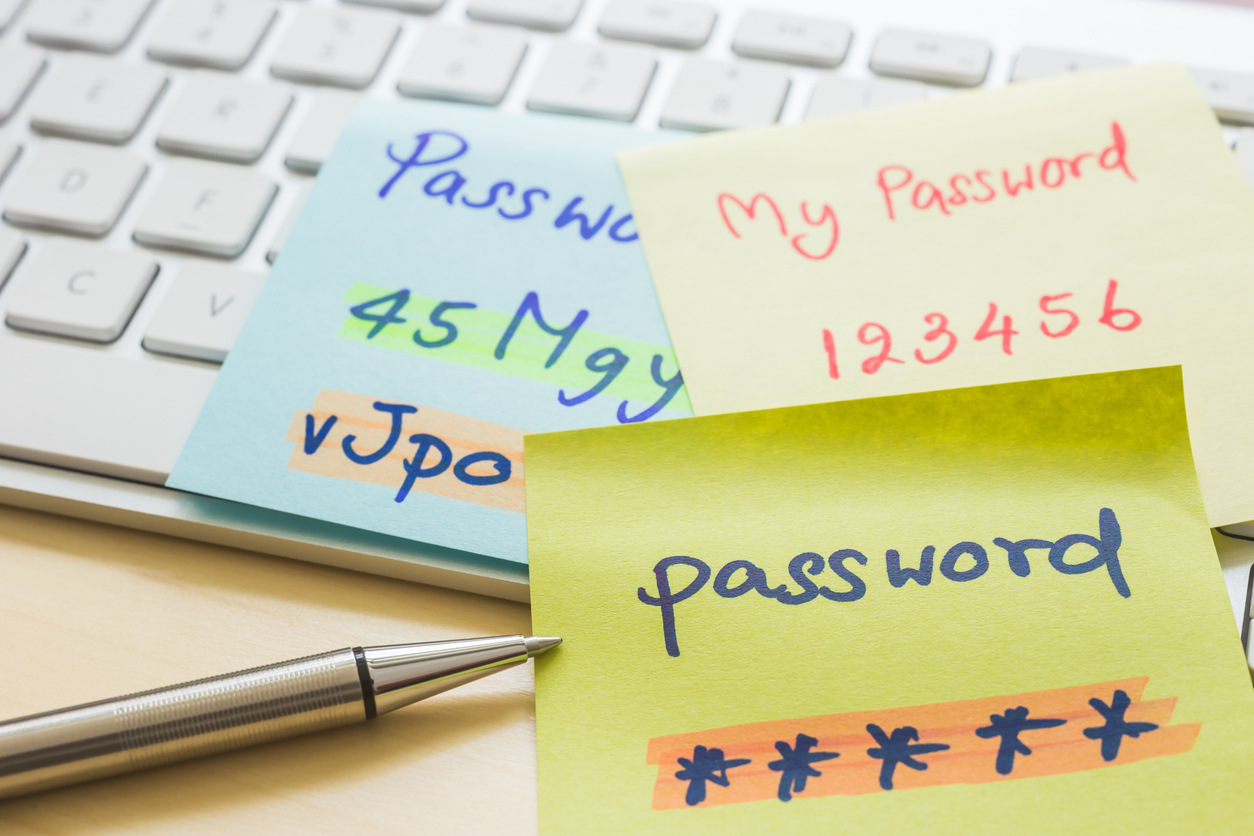
Most people over 55 manage passwords one of three ways. A notebook (forgettable, losable). The same password reused across 30 sites (one breach exposes everything). Or relying on "forgot password" every time they log in (slow, frustrating, and a security weakness in itself).
There's a fourth option, and it's been the standard recommendation from cybersecurity experts for a decade: a password manager. It's the rare piece of tech that's actually easier than the alternative, dramatically safer, and free for most people.
What a password manager actually does
Three things, mostly:
First. It stores your passwords in an encrypted vault. You remember one master password (your only password). The manager remembers the rest.
Second. It fills in passwords automatically when you visit websites. You don't type them. Faster, no errors, no risk of someone watching.
Third. It generates strong, unique passwords for every site. Long, random strings that you couldn't remember even if you tried. That's the point: every site gets a different password, so a breach at one site doesn't expose the others.
Why this matters
Password reuse is the single biggest cause of online identity theft. When a website you use gets hacked, the attackers don't just steal your login for that site. They try the same password on your bank, your email, your investment account, your medical portal. If you reused, they're in.
Data breaches happen constantly. Major ones in recent years: T-Mobile, Equifax, Marriott, Yahoo (3 billion accounts), Adobe. If any of these touched you, your password from that breach is sitting in a database somewhere being tried against other sites.
A password manager solves this by making every password unique. The Marriott breach can't damage your Bank of America login because the passwords are completely different.
The honest math
Average adult has 100-plus online accounts in 2026. Remembering 100 unique strong passwords without help is impossible. A password manager makes it trivial. You remember one master password. The vault remembers 100.
Time investment: 15 minutes to set up. Maybe an hour over the first month to gradually update existing passwords as you log into different sites.
Ongoing time: actually faster than not using one, because logins are auto-filled instead of typed.
Cost: free for most people. Premium tiers run $3 to $5 a month if you want extras.
The four password managers worth using
Bitwarden (recommended for most people)
Free tier is generous and complete. Open-source code (security professionals can verify it). Apps for every platform. Premium tier is $10 a year for extras most people don't need. Best free password manager available.
1Password
$36 a year individual. $60 a year family (covers 5 people). No free tier. The most polished interface and best user experience of the major password managers. Worth paying for if you want the smoothest setup, or for families that need shared access.
Built-in: Apple Keychain or Google Password Manager
If you use only Apple devices or only Android devices, the built-in password manager is fine. Apple's iCloud Keychain works on iPhone, iPad, and Mac. Google's Password Manager works on Android and Chrome browser. Both are free and increasingly capable in 2026.
The limitation: they don't work as well across ecosystems. If you have an iPhone but a Windows laptop, the cross-device experience is rough. Dedicated managers like Bitwarden and 1Password handle this better.
Avoid: LastPass
LastPass was the most popular password manager for years. They had a major breach in 2022 that exposed encrypted vault data. The security community has largely moved on. If you're still using LastPass, this is a good year to switch.
The 15-minute setup
Step 1: Pick one
For most people: Bitwarden. Free, secure, works everywhere. Go to bitwarden.com on your computer. Click "Get started" and create an account.
Step 2: Create your master password
This is the only password you'll need to remember. Make it long but memorable. The standard recommendation is a passphrase: four random words strung together. "Yellow Octopus Sundial Brigade." Easy to remember, very hard to guess.
Write the master password on a piece of paper and store it in a safe place at home. If you forget it, there's no recovery option. The vault is encrypted with the master password and Bitwarden can't reset it for you.
Step 3: Install the browser extension
In Chrome, Safari, Firefox, or Edge: go to the extension store and add the Bitwarden extension. The icon appears in your browser toolbar.
Step 4: Install the mobile app
App Store (iPhone) or Google Play (Android). Search Bitwarden. Install. Sign in with your master password.
Step 5: Start using it gradually
The next time you log into any website, the Bitwarden extension will offer to save the password. Say yes. Within a few weeks of normal browsing, your vault fills up automatically.
Don't try to add every password in one sitting. The gradual approach is fine. Each site only needs to be saved once.
Three habits that finish the security upgrade
Update old reused passwords
Once Bitwarden is set up, run its password audit. Go to bitwarden.com on your computer, log in, click "Vault" > "Reports" > "Reused passwords." The list shows where you've used the same password on multiple sites.
Start with the highest-stakes accounts: email, bank, retirement accounts, Medicare/SSA. Change those passwords first. Use the password generator to create new strong ones. Move on to lower-stakes sites at your own pace.
Enable two-factor authentication on important accounts
Two-factor authentication (2FA) is a second login step (usually a code from your phone) on top of your password. Even if someone gets your password, they can't get in without your phone.
Enable 2FA at minimum on: email, bank, retirement accounts, social media, Apple ID or Google account. Most sites have this option buried in the security settings.
Stop emailing or texting passwords
Sending a password by email or text is one of the riskiest things you can do. The message can be intercepted, the recipient's account can be hacked, you have no control once it's sent. If you absolutely need to share a password (with a spouse, an adult child), do it through the password manager's built-in sharing feature.
If you're not ready to switch entirely
Start with one category. Pick three high-stakes accounts (bank, email, retirement). Generate strong unique passwords for those. Save them in Bitwarden. The rest of your accounts can keep using your old method until you're comfortable.
Most users find that within two months, they've migrated everything naturally. The pain point that drives migration is usually a "forgot password" reset on a site you don't remember using. Bitwarden eliminates that frustration.
What to do next
Open bitwarden.com on your computer this afternoon. Spend 15 minutes creating an account and installing the extension. The next time you log into your bank, save the password to Bitwarden.
Within a month, you'll have a smoother, safer relationship with your online accounts than you've had in years. The notebook can be thrown away.
Sources
1. Bitwarden, Open-source password manager. bitwarden.com
2. 1Password, Family and Personal Plans. 1password.com
3. National Cybersecurity Alliance, Use Strong Passwords. staysafeonline.org
4. CISA (Cybersecurity and Infrastructure Security Agency), Tips on Creating Strong Passwords. cisa.gov/secure-our-world

Get our weekly roundup of smart savings tips.